gmStudio Configuration Form
Configuration Files Panel
Section titled “Configuration Files Panel”The Configuration Files Panel allows you to view and edit various types of translator Configuration Files.
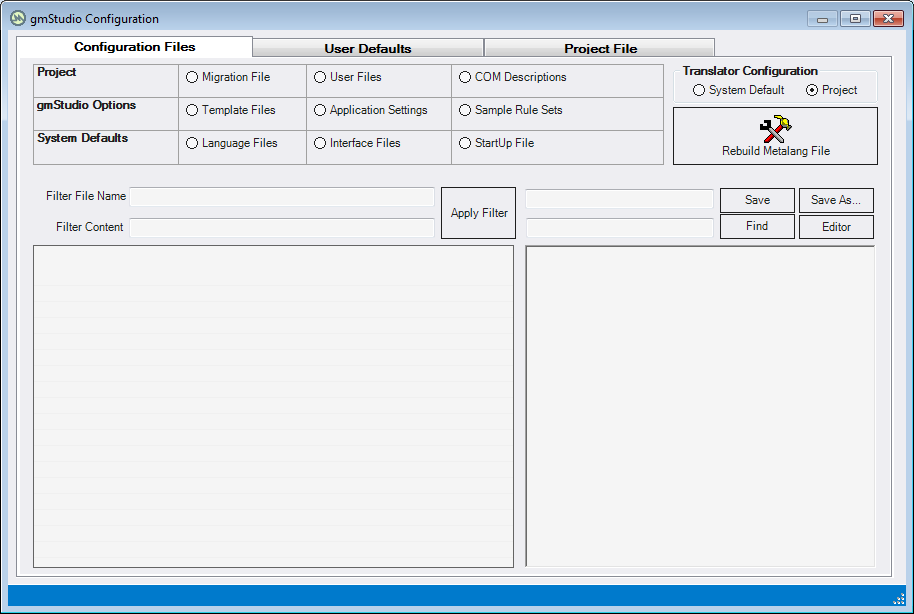
Types of Configuration Files
Section titled “Types of Configuration Files”The types of Configuration Files described here are:
-
Project Configuration
- Migration File: the gmproj file currently loaded in the tool.
- User Files: All *.xml, *.txt, and *.cmd files in the workspace\usr folder and its subdirectories (i.e. translation script template files and other migration rules files). These may be compared with system default configuration files where applicable.
- COM Descriptions: All COM interface description files (IDFs) in your workspace\usr. These may be compared with the IDFs generated from COM binaries where applicable.
-
gmStudio Options
- Template Files, default templates used to set up new migration projects such as translation Script templates, batch script templates.
- Application Settings: The gmStudio.cfg file containing various settings that govern behavior of gmStudio. Details on this file are provided as comments within the file itself.
- Samples Rule Sets: Customized COM IDFs and other gmBasic scripts that may be incorporated into your upgrade solution to produce custom upgrade results.
-
System Defaults
- Language Files, files which configure the default processing behavior of the translator. These files are compiled into the binary metalanguage file that is used by gmBasic when it does a translation.
- Interface Description Files: files which configure the default processing behavior of the translator. These files are loaded as text by gmBasic when it does a translation.
- StartUp File: the gmBasic.xml file that directs the tool to the binary metalanguage file and provides settings for several system variables.
Updating the Translator Configuration
Section titled “Updating the Translator Configuration”The Configuration files form also is used to rebuild the binary metalanguage file and configure the tool to use project-specific metalanguage settings. The page, Custom Language Replacement **** describes how you can customize the replacement of VB6 language elements during a migration.
User Defaults Panel
Section titled “User Defaults Panel”The User Defaults Panel facilitates editing the most frequently customized application configuration settings. Clicking [Save] writes these settings to the application config file.
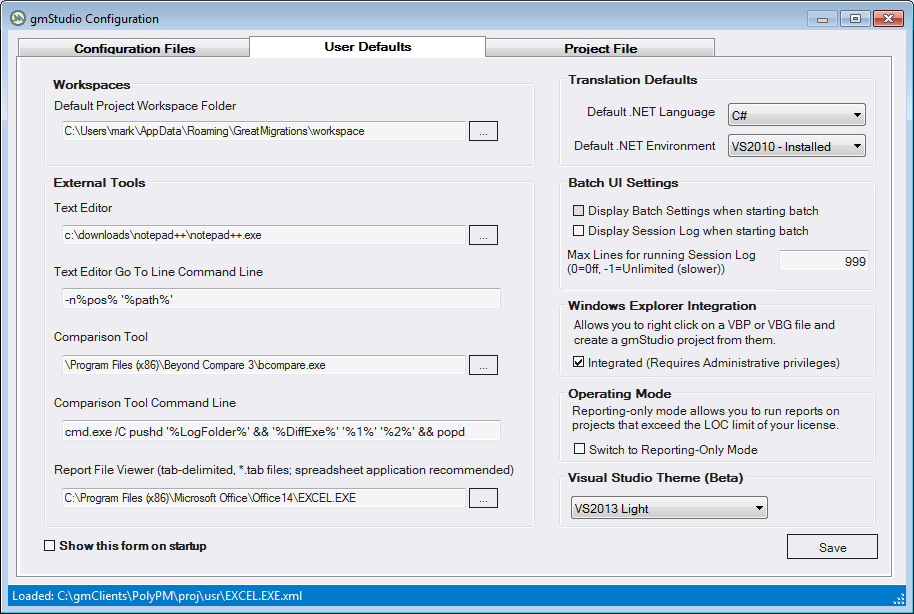
Sample Settings for Text Editor
Section titled “Sample Settings for Text Editor”Visual Studio 2013
- Text Editor C:\Program Files (x86)\Microsoft Visual Studio 12.0\Common7\IDE\devenv.exe
- GoTo Line Command Line /edit ‘%path%’ /command ‘edit.goto %pos%’
Visual Studio 2017 (and higher)
- Text Editor C:\Program Files (x86)\Microsoft Visual Studio\2017\Professional\Common7\IDE\devenv.exe
- GoTo Line Command Line /edit ‘%path%’ /command ‘edit.goto %pos%’
Launch Visual Studio Using VBScript
Click to expand
VBScript Code to Start/Activate Visual Studio with a File@Line
filepath = WScript.Arguments(0)if Wscript.Arguments.Count=2 then   line = WScript.Arguments(1)else   line = 1end if
On Error Resume Next
' try to get running instanceSet dte = getObject(,"VisualStudio.DTE.15.0") ' VS2017 (from registry depending on installed version)If Err.Number <> 0 Then   Err.Clear   ' try to get new instance   Set dte = WScript.CreateObject("VisualStudio.DTE")End If
If Err.Number = 0 Then   ' activate instance   dte.MainWindow.Activate   dte.MainWindow.Visible = True   dte.UserControl = True
   ' load file   dte.ItemOperations.OpenFile filepath   ' try to to line   dte.ActiveDocument.Selection.MoveToLineAndOffset line, 1
   ' formulate title bar   Set objFSO = CreateObject("Scripting.FileSystemObject")   Set objFile = objFSO.GetFile(filepath)   filename = objFSO.GetFileName(filepath)   appTitle = filename & " - Microsoft Visual Studio"
   ' bring to instance front   Set ObjShell = CreateObject("Wscript.Shell")   ObjShell.AppActivate(appTitle)Else   msgBox "Unable to start VS for " & vbcrlf & filepath & vbcrlf & appTitleEnd If
NotePad++
- Text Editor C:\Program Files (x86)\Notepad++\notepad++.exe
- GoTo Line Command Line -n%pos% ‘%path%’
Visual Studio Code
- Text Editor C:\Program Files (x86)\Microsoft VS Code\Code.exe
- GoTo Line Command Line -goto ‘%path%’:%pos%:1
Sample Settings for Comparison Tool
Section titled “Sample Settings for Comparison Tool”Beyond Compare https://www.scootersoftware.com/
Program Path: C:\Program Files\Beyond Compare 4\BCompare.exe
Comparison Command Line: cmd.exe /C pushd ‘%LogFolder%’ && ‘%DiffExe%’ ‘%1%’ ‘%2%’ && popd (works for files and folders)
VSCode https://code.visualstudio.com/
Program Path: C:\Users\name\AppData\Local\Programs\Microsoft VS Code\Code.exe
Comparison Command Line: cmd.exe /C pushd ‘%LogFolder%’ && ‘%DiffExe%’ —diff ‘%1%’ ‘%2%’ && popd
Project File Panel
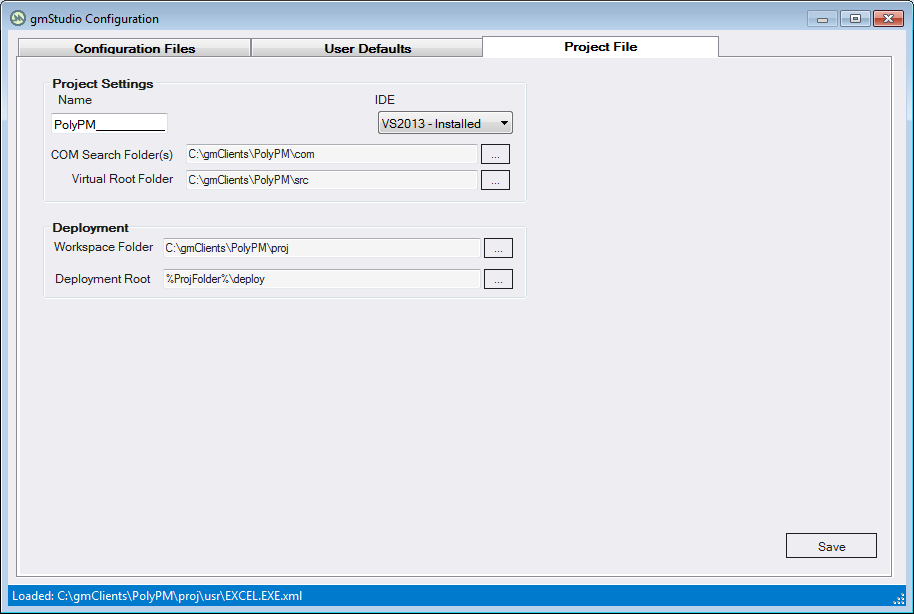
Section titled “Project File Panel”The Project File Panel facilitates editing global settings in your project configuration file (gmProj file).
 .
.